Convert books from DOCX to EPUB with Calibre.
One of the best tools for converting manuscripts from one format to another is without a doubt Calibre (a free, cross‑platform tool). Unlike other software, it’s quite intuitive and—after experimenting with it for a while—using it becomes fairly simple. Let’s start with the basics. Calibre may seem cumbersome at first, but the steps required to convert a book created with Microsoft Word into an EPUB (the ideal format for publishing an ebook today) are actually quite straightforward. Let’s take a look at them.
For those who are already familiar with the topic, skip directly to the section below: Fixing the missing‑formatting issue after conversion.
- Once the program is installed on your PC (working on desktop is ideal), open it. The interface you’ll see in the screenshots below is in English for translation convenience, but by clicking on Preferences you can choose your preferred language, which is usually selected during installation.
- In the top menu, click on “Add books". Then upload your manuscript in either DOC or DOCX format (converting from PDF is not recommended). You will then find it listed prominently in Calibre’s library.
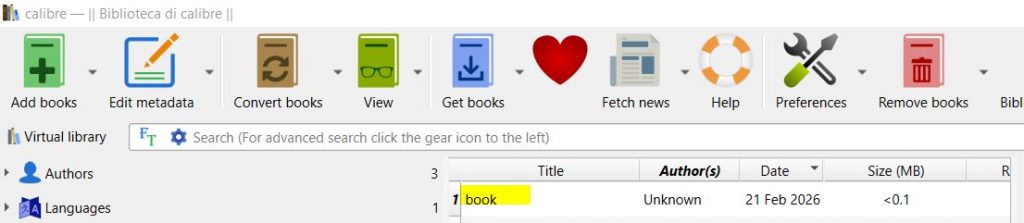
3. At this point, to convert it to EPUB, select the book and click on “Convert books", again in the top menu. See the image above.
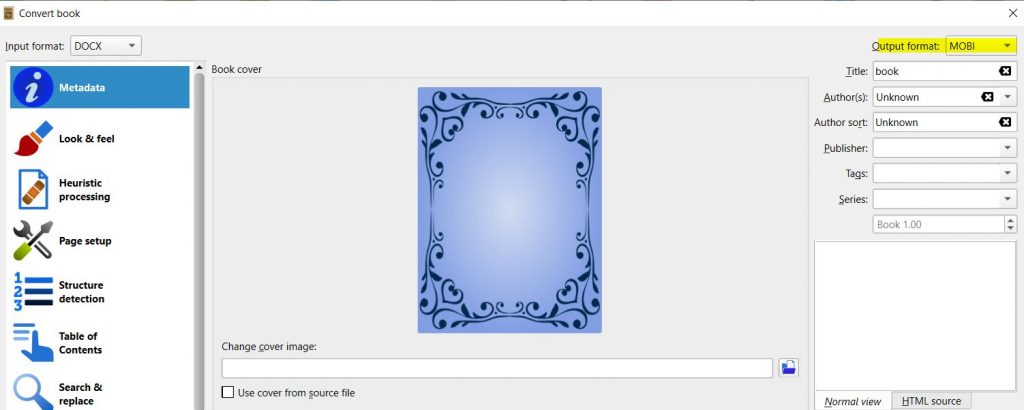
4. Now, in the drop‑down menu on the right, choose the format EPUB. Just below, enter the metadata: the book title, the author (or multiple authors), etc.
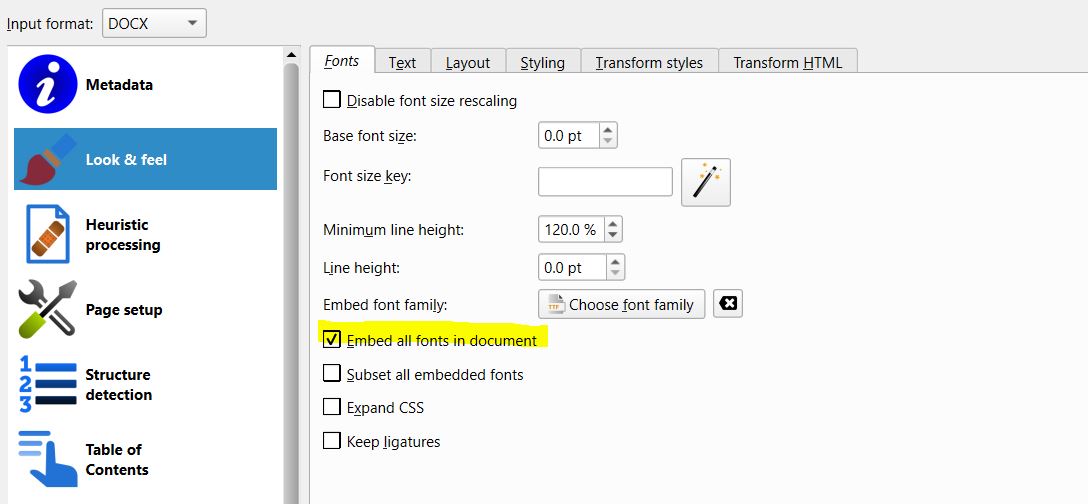
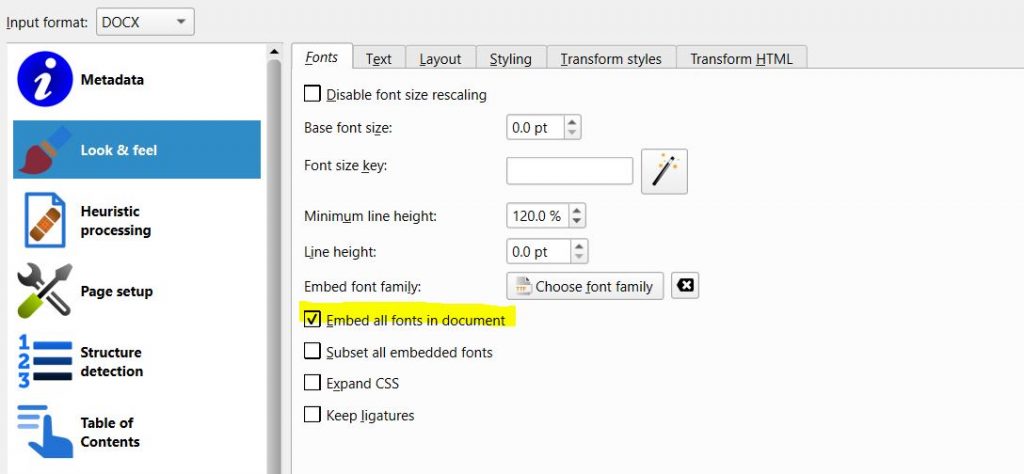
5. Upload the book cover by clicking on ‘Change cover image’ and selecting it from your PC. Then click on "Look & feel“, in the menu on the left, here you only need to check one option: ”Embed all fonts in document” (see image below).
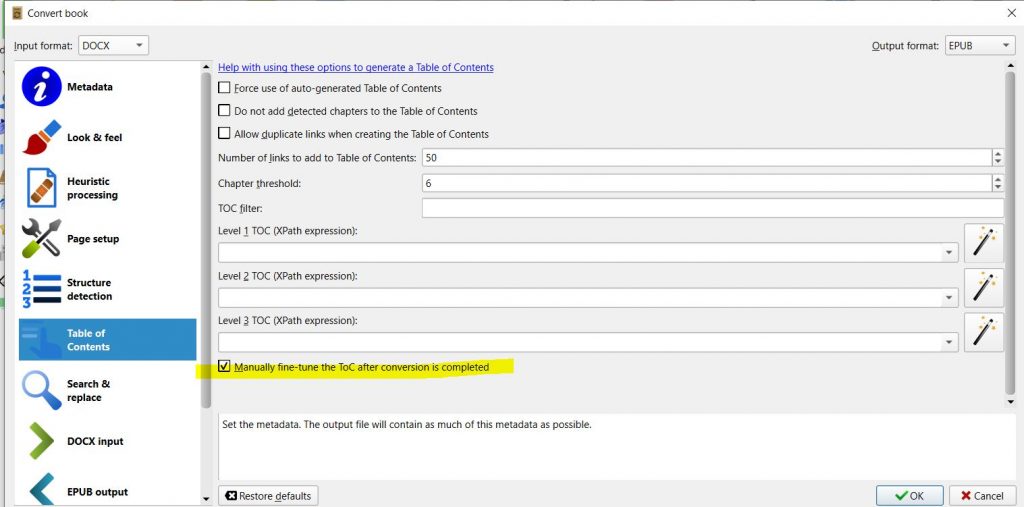
6. As for the ebook’s table of contents, sometimes Calibre is unable to detect it correctly, so to avoid misalignments or missing links, still in Calibre’s left‑hand menu, click on “Table of Contents” and check the option that says “Manually fine‑tune the ToC after conversion is completed”
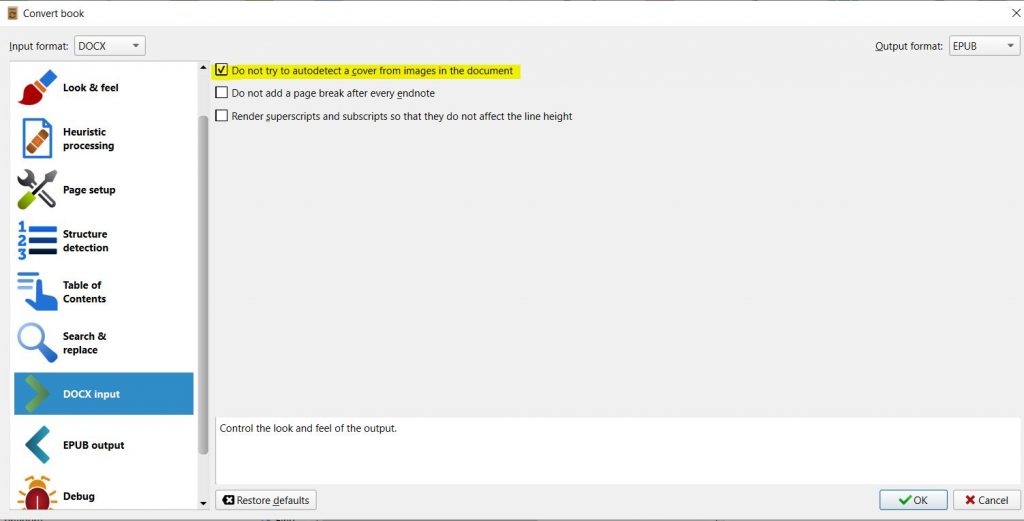
7. Final step. Sometimes Calibre tends to overlay images from inside the book onto the cover. To prevent this from happening, click on DOCX Input in the left‑hand menu, and check the option: “Do not try to autodetect a cover from images in the document”
8. Click OK and you’re done. These are the basic steps for converting a book from DOCX to EPUB.
9. At the end of the conversion, a screen will appear allowing you to manually define the Index, where you can delete or add entries, or detect them through links or headings present in the text.
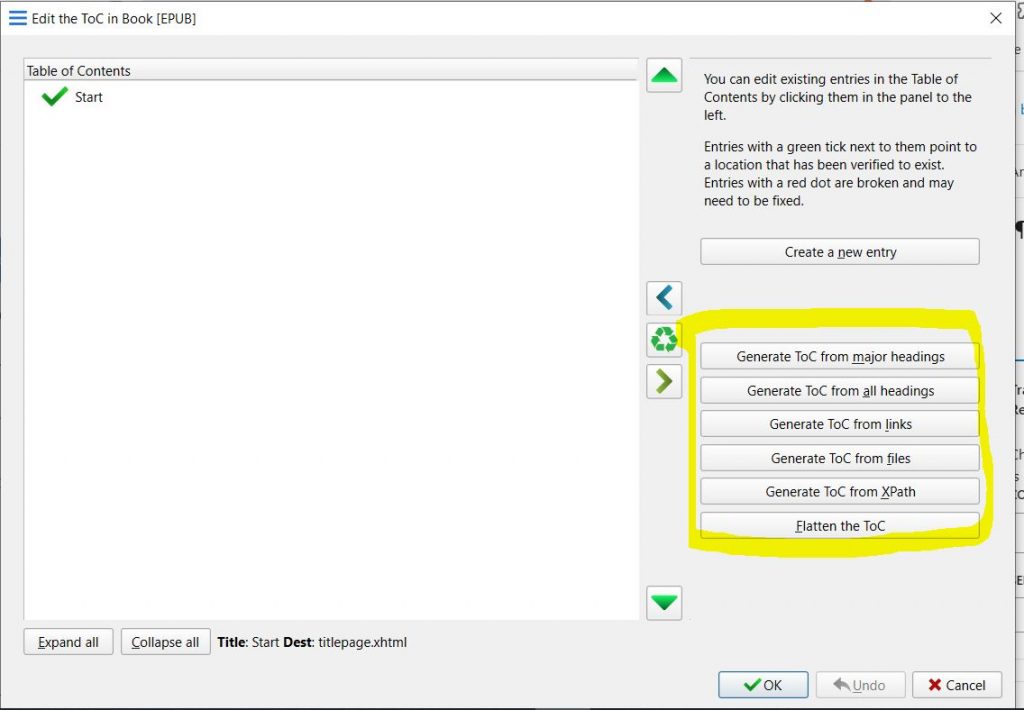
10. When you are satisfied with the result, confirm by clicking OK.
Fixing the missing‑formatting issue after conversion
Once the conversion is complete, you will have your manuscript converted into EPUB and ready for publication on any ebook platform or storefront. However, if after visually checking the text directly in Calibre (you will in fact find your converted book right next to the DOCX version…
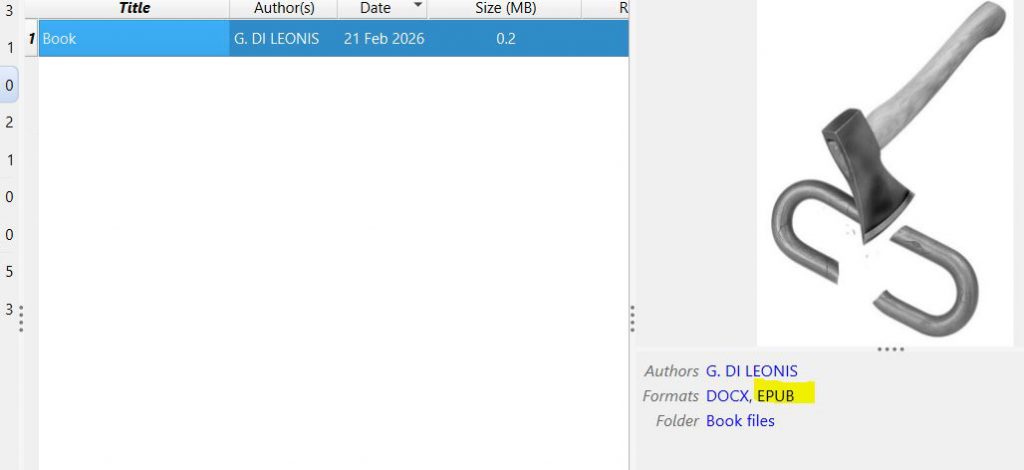
As I was saying, if after visually checking the text—by clicking on the EPUB version after conversion—you notice that part of the formatting is missing (bold, italics, or anything else), then an additional step is needed. Unfortunately, Calibre, in its current version at the time this article is being published, is not able to recognize all the code classes inserted by Word Office (at least those from the more recent versions of the Windows program).
The simplest solution is to convert the book from DOCX to HTML before uploading it to Calibre and converting it again to EPUB by following the same steps shown above. You can do this directly with Word Office: when saving the file, click on.
File → Save As… → select the destination folder → and in the dropdown menu next to Save as: choose Web Page (.htm, .html)
Done. However, there is another issue that arises if your DOCX manuscript includes images. In this case, saving as HTML will generate a separate folder containing the image files, and Calibre is not able to incorporate them when you load the book’s HTML file. You will need to add them manually by editing the EPUB through Calibre’s “Edit book” tool.
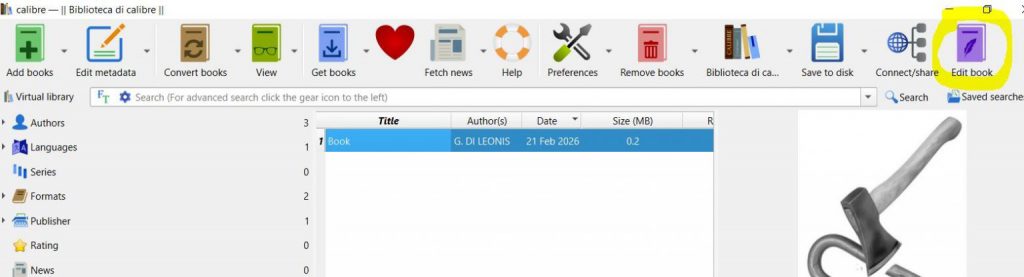
This may not be an issue if you are comfortable working with HTML and CSS code, and if there are only a few images. Otherwise, you will need a couple more steps.
To keep the images and the text together in a single file that Calibre can read—so that it remains compatible—it is currently not possible to save from DOCX to .MHT using Word Office, which would have been very convenient (but Calibre does not support it, at least until now). Therefore, an alternative is the HTMLZ format. Don’t be intimidated by all these acronyms; the process is easier to do than to explain.
Do not convert to HTMLZ directly from Calibre (DOCX → HTMLZ). Although the option is available, it will carry over the same formatting errors.
Use a third‑party service, even one of the online options available, such as this one https://freefileconvert.com/docx-htmlz
Once you have your manuscript converted into HTMLZ, complete with images and with the correct formatting (which you can check by opening it directly in Calibre), follow the same procedure explained at the beginning of this article to convert from HTMLZ → EPUB. Problem solved.